
Finalising invoices or reviewing job history can feel like guesswork sometimes — it can be hard to piece together what happened on site. The new Job Checkout Report gives you the full story — click any recorded time in the Diary to see a detailed breakdown of what the technician did while they were Checked In to the job.
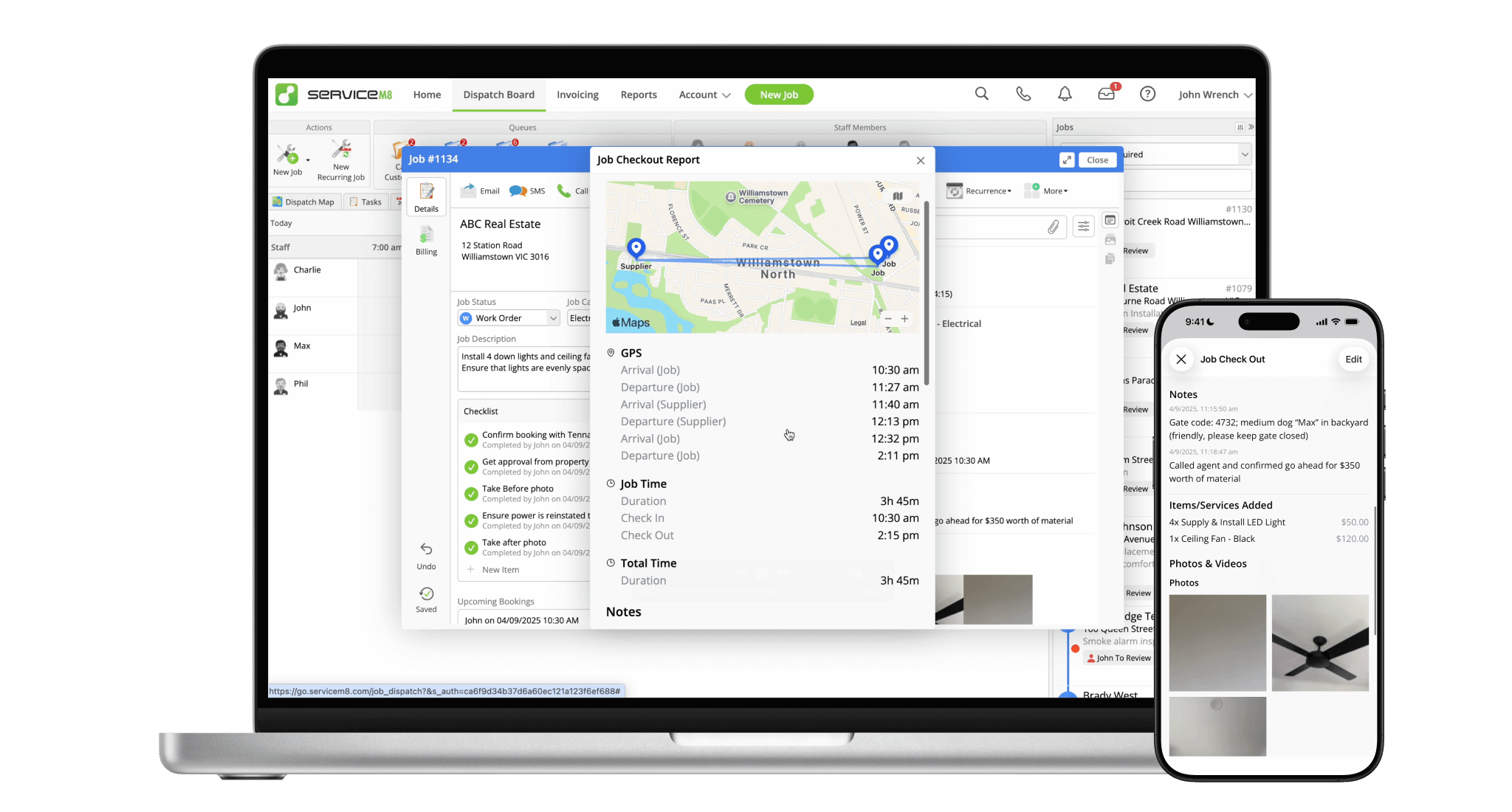
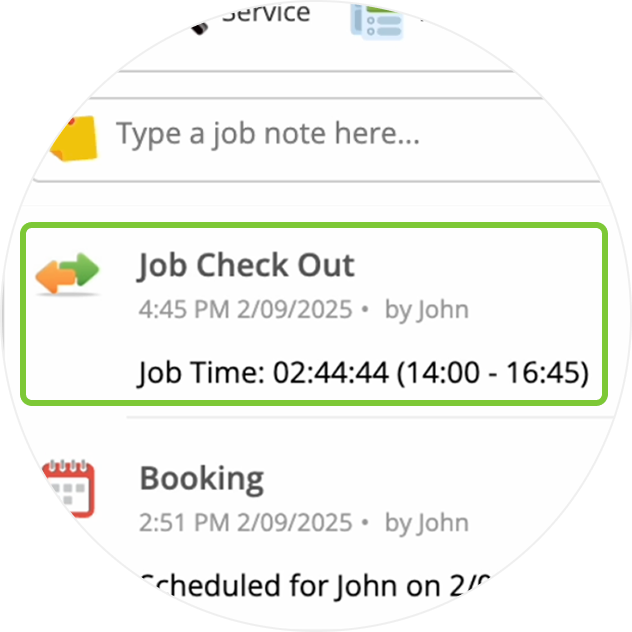
Recorded time now shows in the job's Diary online, just like the app. Click to access the new Job Checkout Report.
See locations visited while the technician was Checked In, to confirm supplier trips or verify your billable time.
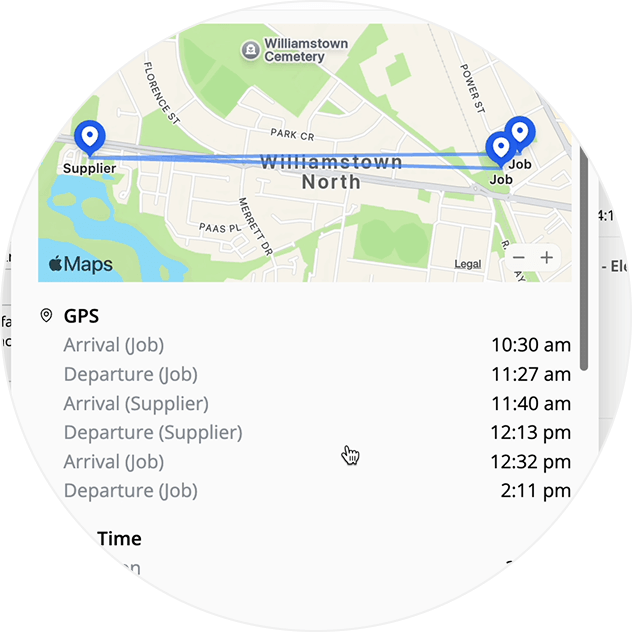
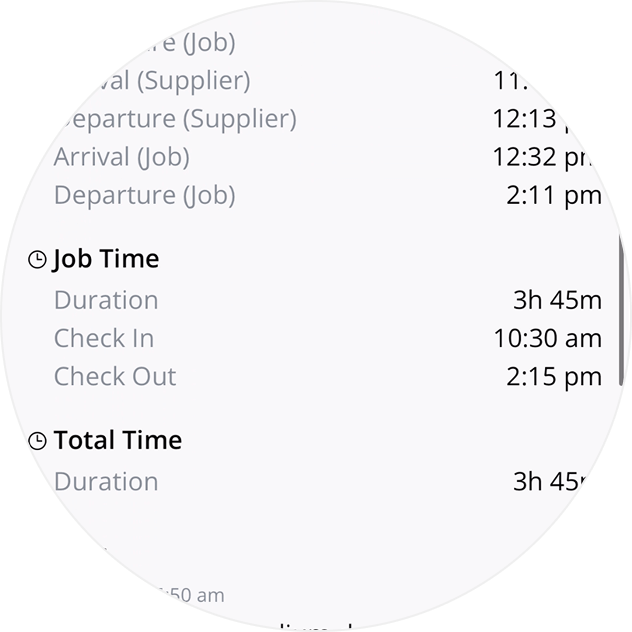
See all arrivals and departures, so you can cross-reference with recorded time.
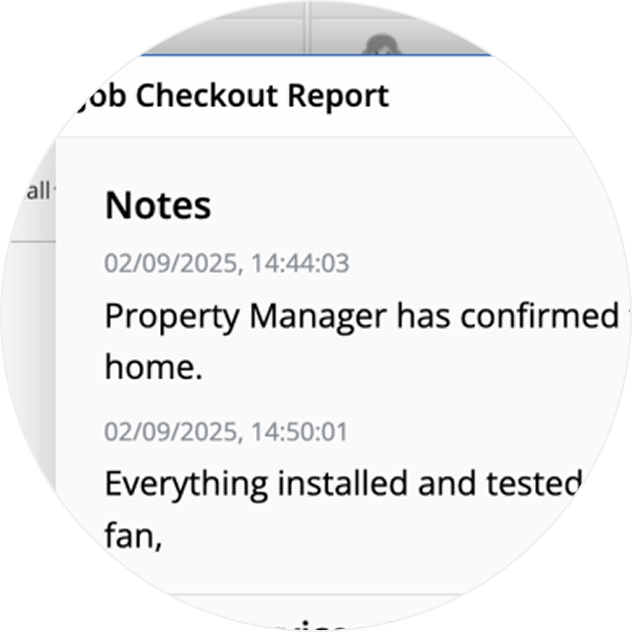
View which Notes were saved to the job by the technician during the visit, for greater context.
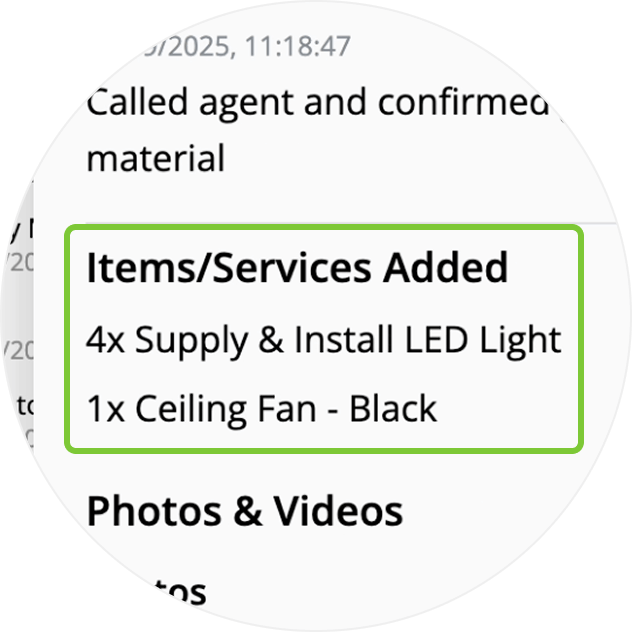
See all Items added by the technician during the visit, to confirm who added what, and when.
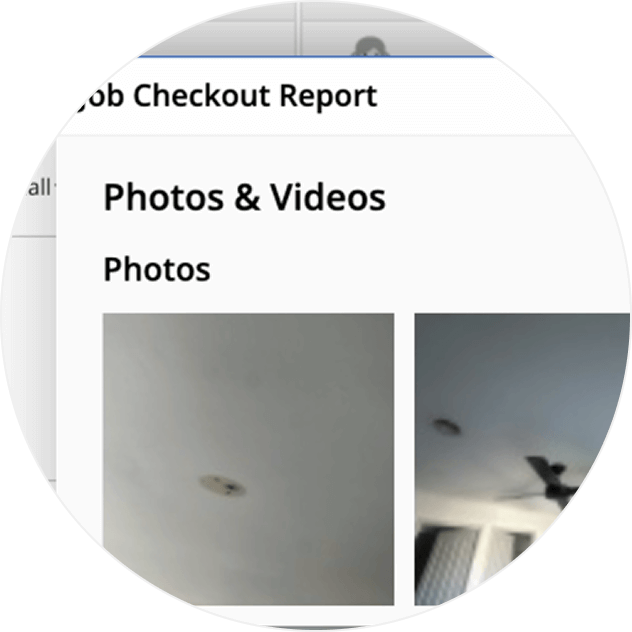
Review any photos & videos captured during the visit, separated by Tag.
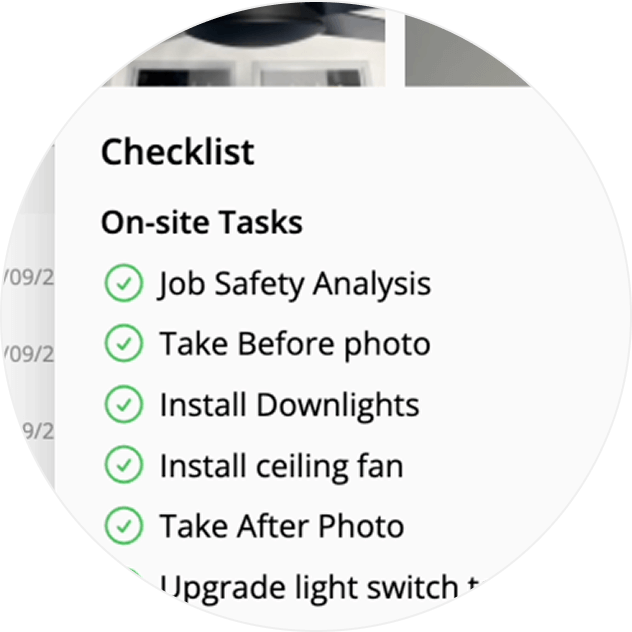
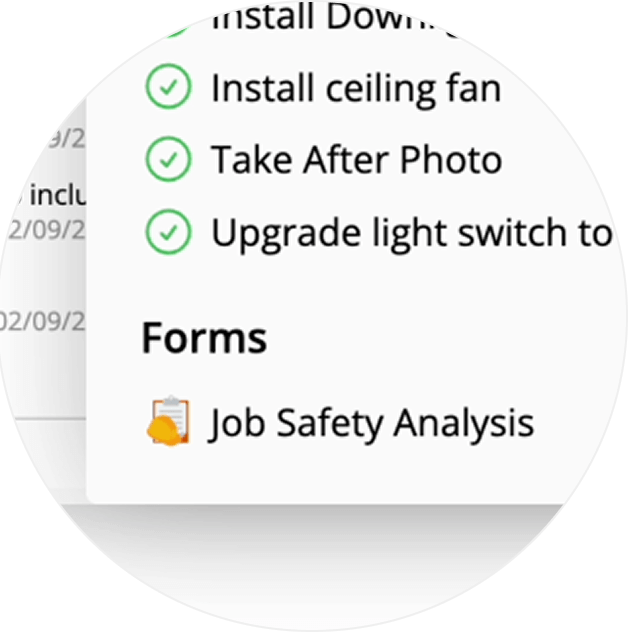
Confirm which checklist tasks were completed by the technician during the visit.
Check whether the technician completed a specific Form, or serviced Assets, during the visit.
Available in the iOS app & Online — simply tap or click the recorded time in the Diary to access.
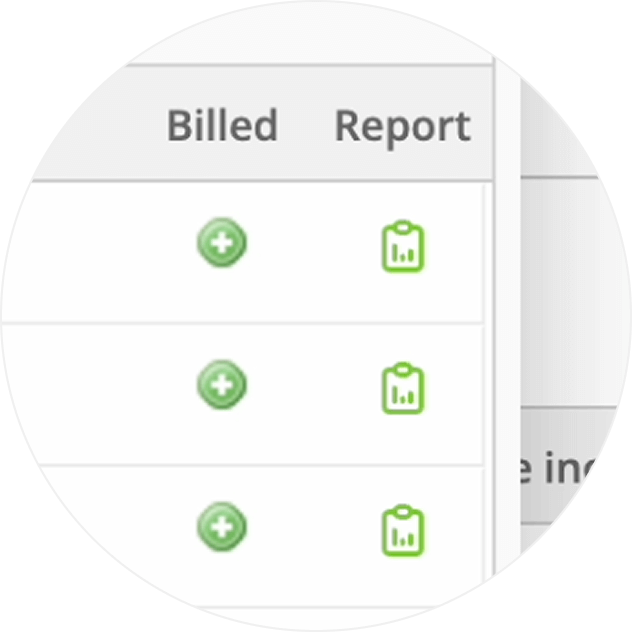
• How to find a Job Checkout report
• Desktop: To activate ServiceM8 14 features & improvements in the Online Dashboard, go to Account > Settings to find the ServiceM8 Launch 2025 notice, and click 'Activate'.
• iOS & Android: The ServiceM8 14 iOS & Android apps are now available in the App Store & Google Play.


